In this article, We activate the JIF system on edge browsers.
We will perform repeated procedures each time to be able to run all reports of the JIF system
- install jre (java version ) your pc must contain at least : jre-8u361-windows-i586 Version.
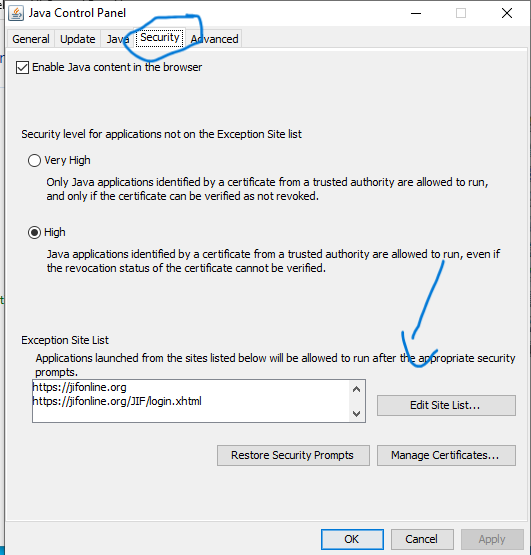
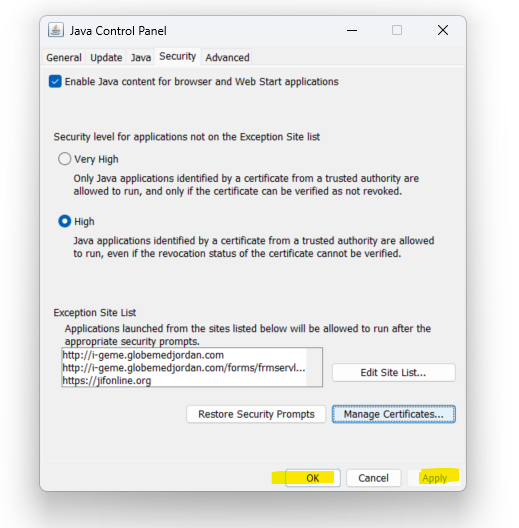
- go to Control panel -> JAVA (32 bit) APP -> Security - > Edit Site List -> then add these two links :
https://jifonline.org/JIF/login.xhtml
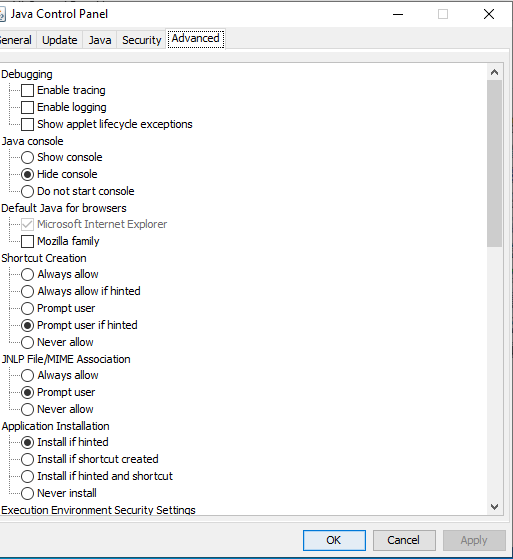
- In same dialog box go to Advanced scroll down and make setting like this :
- Back to security pane, Go to Manage Certificates -> trusted certificates -> Import
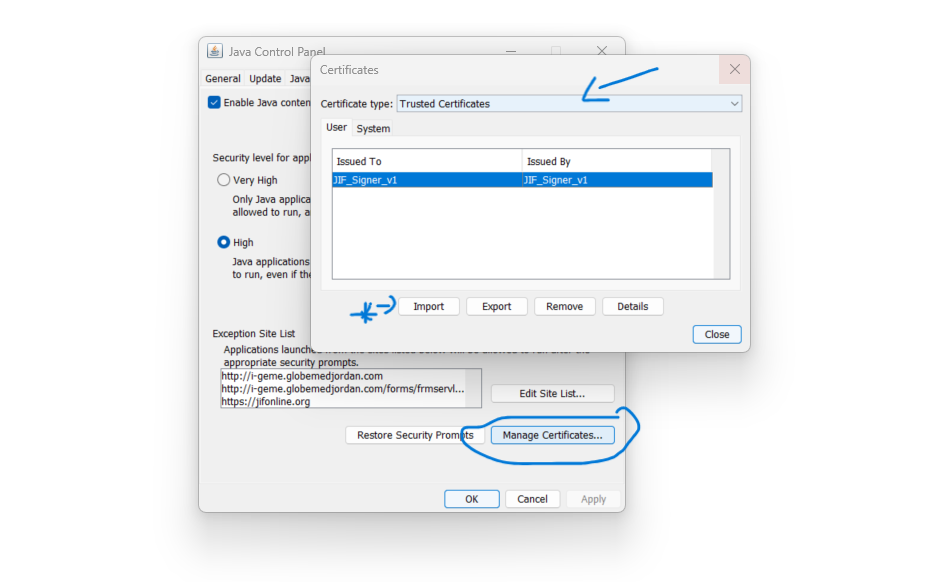
- Go certificate location path on your PC and choose it .
- The Key is : keystored .
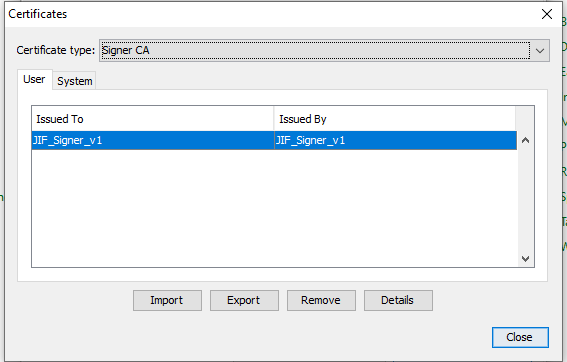
- Choose signer CA and import same certificate , click ok , and apply.
Internet Properties
In order to start doing settings that applicate JIF website you should set internet browser settings
- go to Start and type in the search box : Control panel.
- wait until result appears then click on control panel.
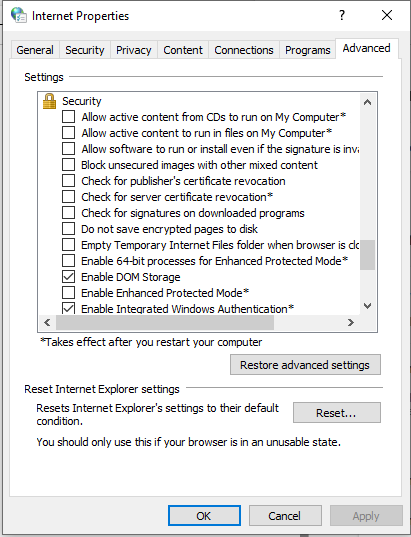
- Find internet properties then choose advanced (Upper right of the box).
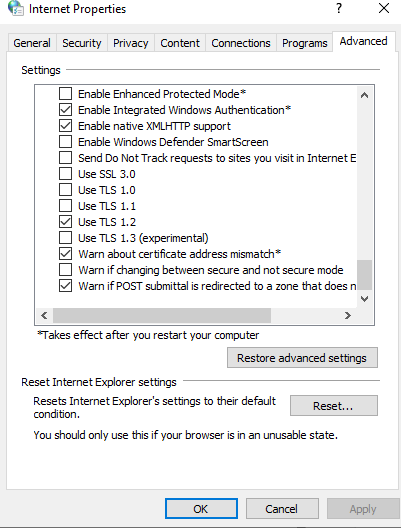
- scroll down mouse while you find security.
- under security make sure to set everything as below:
Edge browser settings
Last thing we should cover edge browser settings :
- open your edge browser.
- choose settings from three dot on upper right area on your browser then.
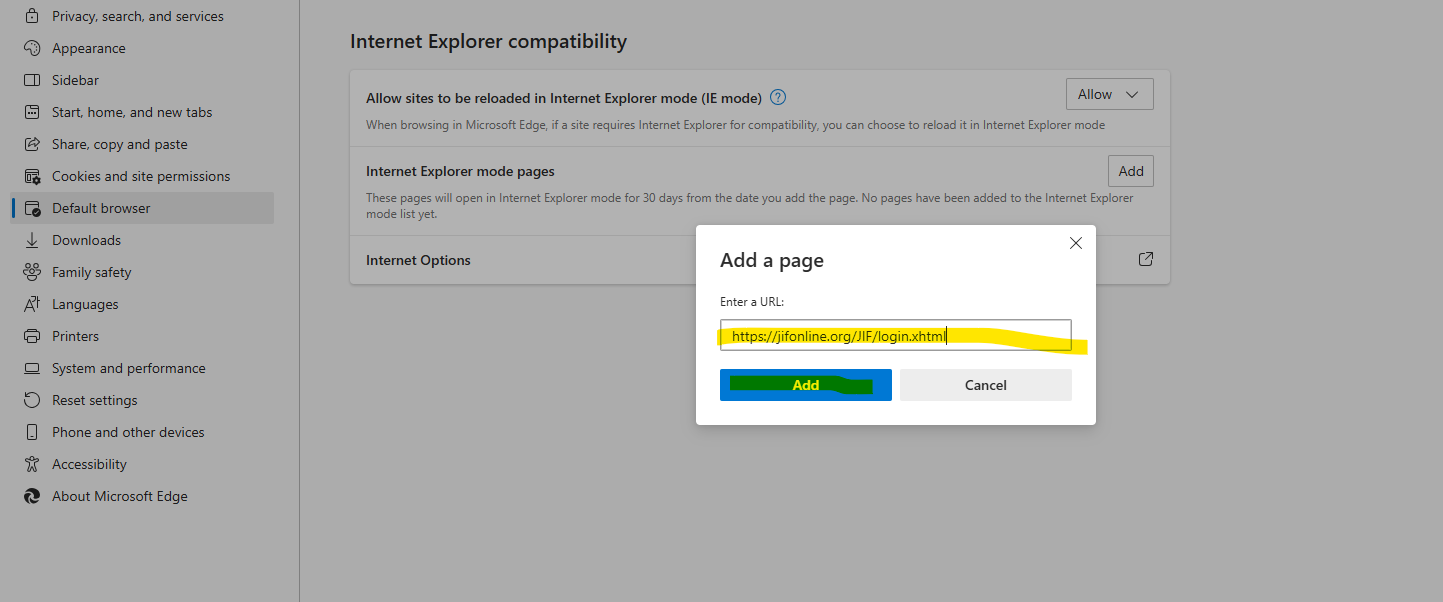
- when you see left sidebar choose -> default browser.
- you can allow specific sites to open its settings with Internet explorer compatibility.
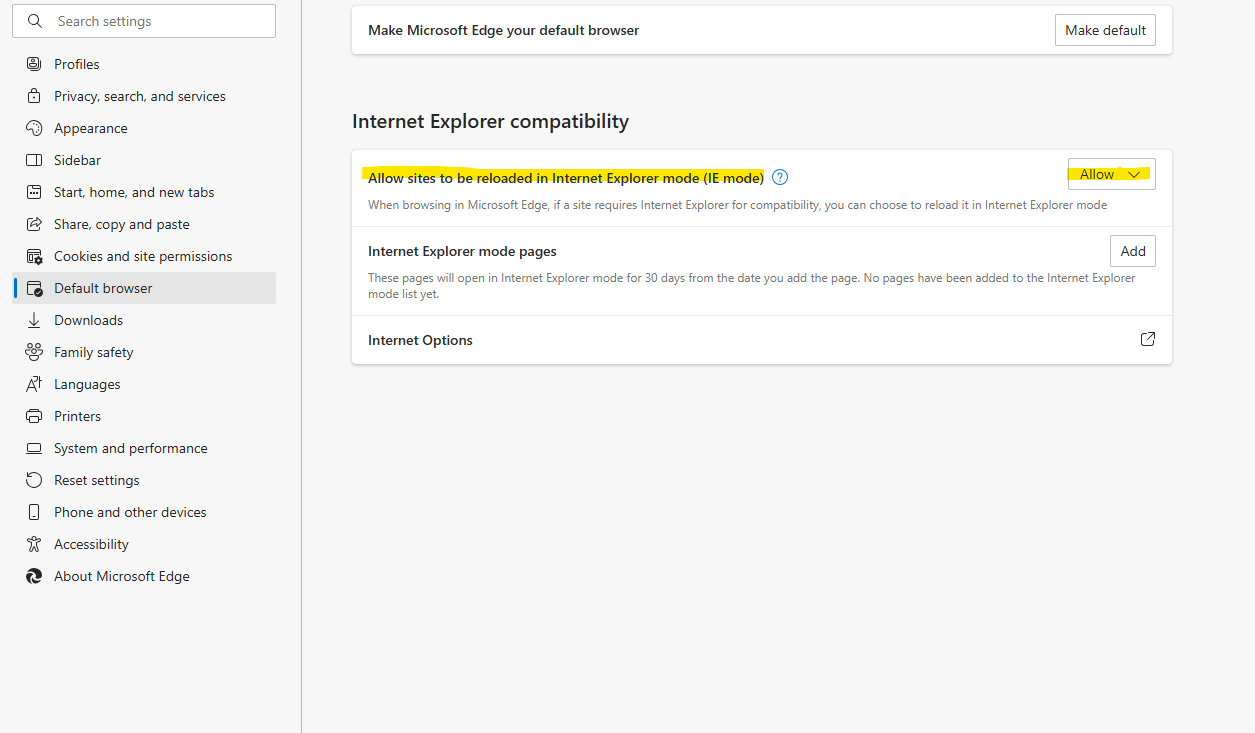
- Make sure internet mode option is active , may browser asks you to reboot.
- Back to same previous page you must add Etihad links as below :
https://jifonline.org/JIF/login.xhtml
https://jifonline.org/JIF/main.xhtml
- create every single link to your browser as below :
Opening JIF website
- When you open JIF system it will ask you to put your username and password.
- After login it is possible for page to going break down.
- Instead, you can refresh your browser by clicking F5 key.
- JIF system works only with IE-mode.
Was this article helpful?
That’s Great!
Thank you for your feedback
Sorry! We couldn't be helpful
Thank you for your feedback
Feedback sent
We appreciate your effort and will try to fix the article